
Windows install help
Your download is on its way.
Pristi is new and not digitally signed yet, so Windows may ask you to confirm the download and installer. This guide shows the exact clicks.
Starting Pristi-Setup.exe…Your download will begin automatically in about two seconds.
Only continue if you started the download from pristi.app.
Finish the download
If the download looks stuck
Press Ctrl + J to open your browser's Downloads list. Find Pristi-Setup.exe, then choose Keep anyway or Resume. The wording varies slightly by browser.
.crdownload file from File Explorer. It is only a temporary, unfinished download.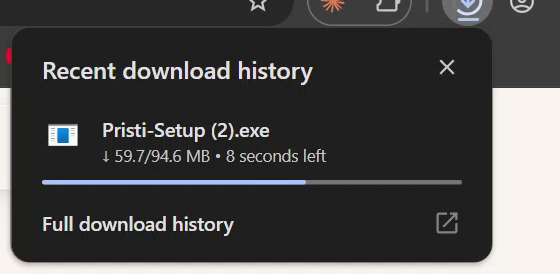
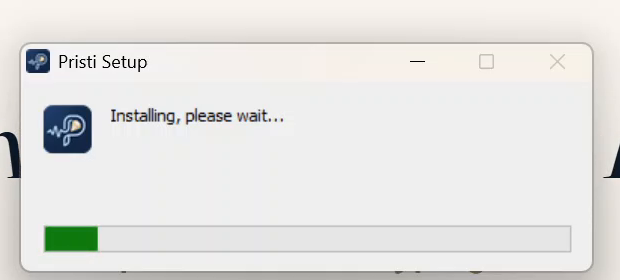
Run the installer
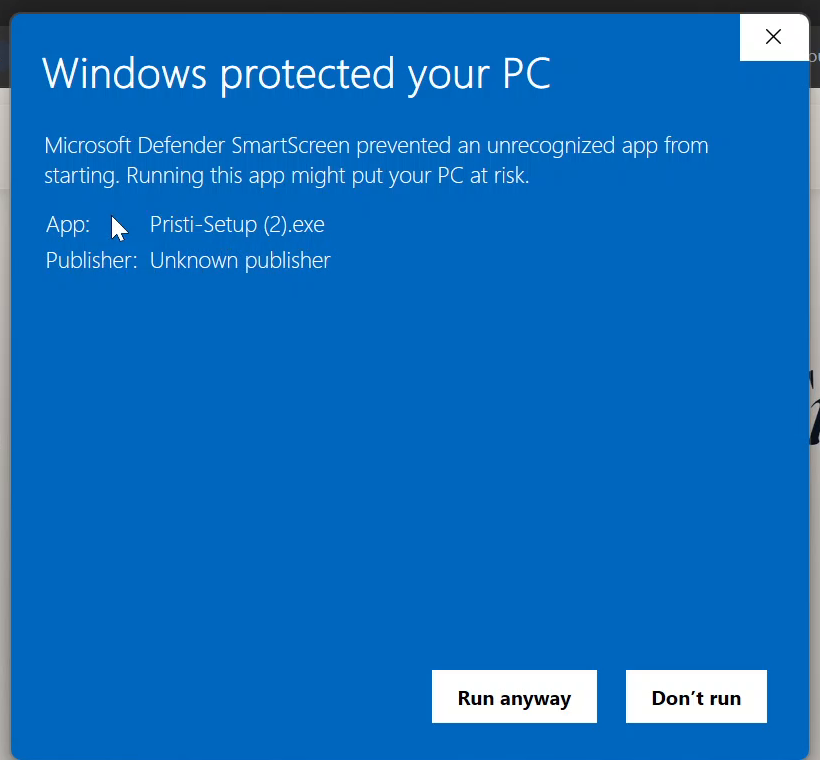
When Windows protects your PC
This warning appears because Windows cannot verify Pristi's publisher yet. Select More info, check that the app name begins with Pristi-Setup, then select Run anyway.
Quick check
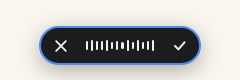
Press Alt + X.
If Pristi starts recording, installation is complete. You can close this guide.
Nothing happened? Continue below.
Only if the hotkeys do not work
Exclude Pristi's folder in Windows Security
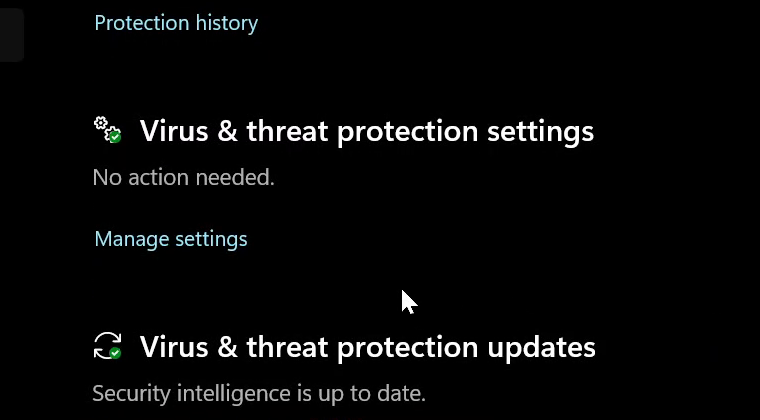
Click Start, type Windows Security, and open the app with the blue shield. Go to Virus & threat protection → Manage settings → Add or remove exclusions. Select Add an exclusion → Folder.
Why this happens: Pristi's hotkey helper, WinKeyServer.exe, listens system-wide for Alt + X and Alt + C. Without a trusted signature, that can look like a keylogger to antivirus software — the detection is usually named Trojan:Win32/KeyLogger!AMTB if you check Windows Security's Protection history. It's a false positive; excluding the folder below is enough.
%LOCALAPPDATA%\Programs\pristi-desktop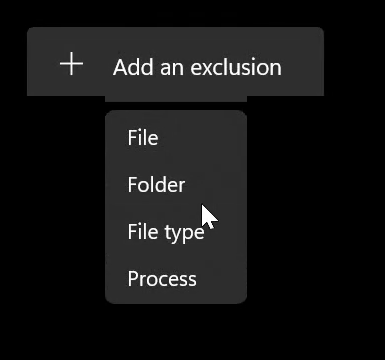
4A
Relaunch Pristi and check again
Open Pristi from the Start menu and press Alt + X. If recording starts, you're done — no reinstall needed.
4B
Still nothing? Reinstall
Windows may have already deleted the blocked file before you added the exclusion — the exclusion alone can't bring back a file that's gone. Fully quit Pristi from the system tray, open Settings → Apps → Installed apps and uninstall it, then run Pristi-Setup.exe again. The exclusion you just added means the fresh copy will be left alone this time. Press Alt + X again to confirm.
You're done. Pristi is ready to use.
Using a different antivirus?
The fix is the same idea as the Defender steps above: add one folder to your antivirus's exclusion list. The exact wording of the warning will look different in every product — what matters is whether it names the same file.
- Folder to exclude
%LOCALAPPDATA%\Programs\pristi-desktop - File the warning should name
WinKeyServer.exe
If your antivirus flags a different file, or something running from outside that folder, do not exclude it — email [email protected] instead.
Norton
Open Norton → Settings → Antivirus → Scans and Risks tab → find Items to Exclude from Scans (sometimes labelled Exclusions/Low Risks) → Configure → Add Folders.
McAfee
Open McAfee Security Center → PC Security (or the gear icon) → Real-Time Scanning → Excluded Files → add the folder.
Quick Heal
Open Quick Heal → Settings → Exclude Files and Folders (under Virus Protection/Antivirus settings) → add the folder.
Avast & AVG
Open the app → menu (☰) → Settings → General → Exceptions → Add Exception → browse to the folder.
Kaspersky
Open Kaspersky → Settings (gear) → Threats and Exclusions → Manage exclusions → Add → browse to the folder.
Bitdefender
Open Bitdefender → Protection → Antivirus settings (gear) → Exclusions → Add an Exclusion → browse to the folder → apply to real-time protection.
Using something not listed here? Every antivirus has an equivalent "exclusions," "exceptions," or "allow list" setting somewhere in its scan or protection settings — add the same folder there. Menu names vary by product version; if you can't find it, email [email protected] and we'll walk you through it.
What we won't tell you to do: turn off your antivirus, disable real-time protection, or ignore a warning about a different file. Excluding this one folder is enough — nothing else needs to change.